Insights
AI Memory Insights gives you unparalleled visibility into your customer conversations. This feature helps you understand what customers are talking about, how your team is responding, a way to identify opportunities for improvement.
Written By Jill Berkowitz
Last updated 11 months ago
To enable Analytics Insights for your team, contact sales@clerk.chat. Once enabled, go to Analytics in the sidebar, then open the Insights tab to start exploring your data.
What You Can See
Common Topics: Quickly identify what your customers are asking about most. Clerk Chat AI automatically surfaces recurring themes, such as support questions, sales inquiries, or billing issues, so your team can spot trends and act faster.
Conversation Tags: See how conversations are being categorized across your workspace. Tags provide structure and consistency, making it easier to filter, measure, and report on key conversation types.
Summaries & Timelines: View concise summaries and visual timelines of each conversation. Get a high-level overview of the content, tone, and flow — without reading through every message.
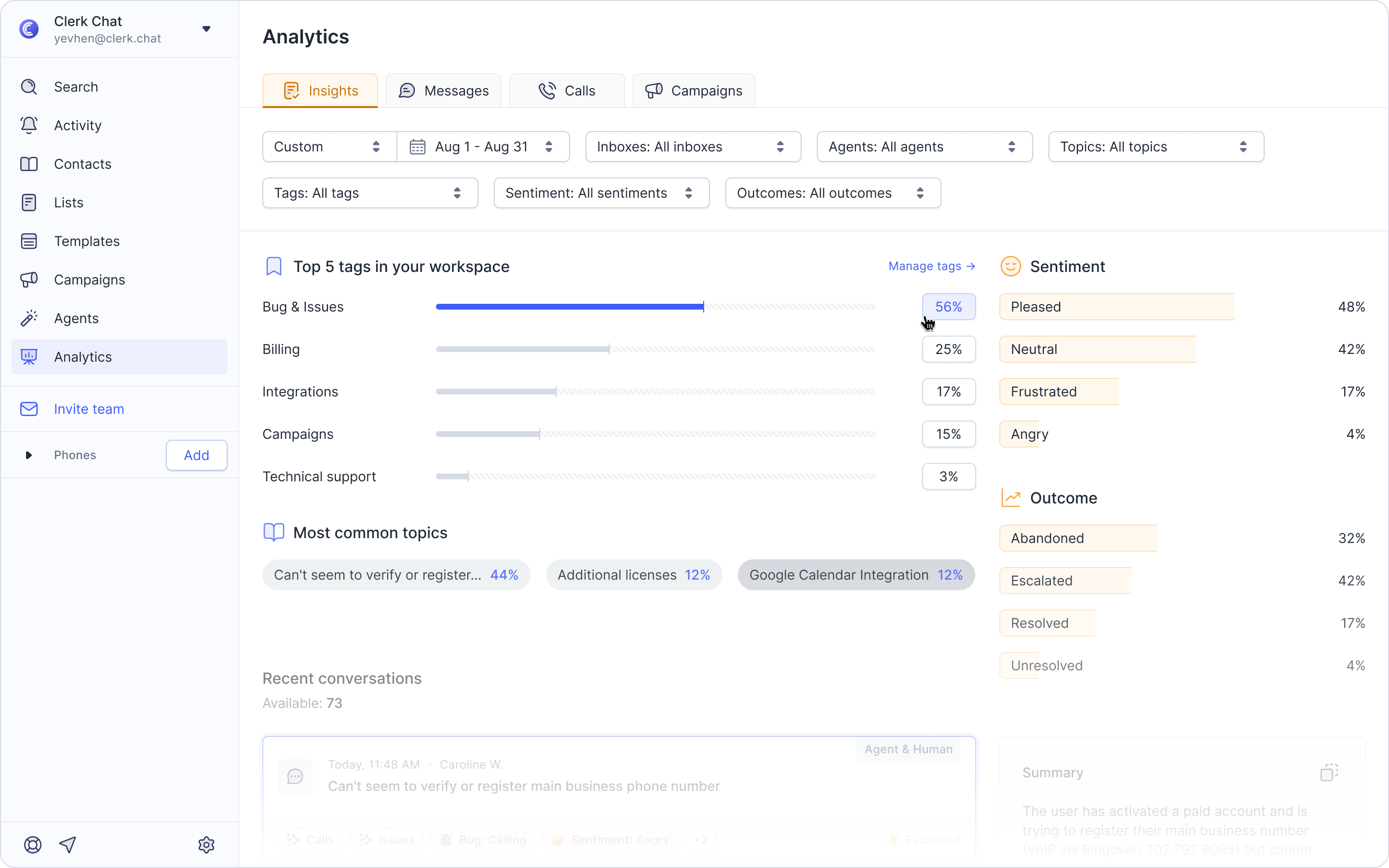
Advanced AI Insights Filtering
We’ve introduced a powerful sidebar, interactive charts, and detailed breakdowns to help you explore conversations more deeply and uncover patterns across your customer interactions. Here’s what’s included:
Sentiment Analysis: Understand the tone of your customer interactions at a glance. The sidebar displays emotional insights such as neutral, frustrated, or pleased, helping you monitor satisfaction and identify at-risk conversations.
Common Topics: See your team’s most common themes, from support and sales to product feedback, with Clerk Chat AI grouping related topics for easier discovery.
Top Tags: See which tags appear most frequently across conversations, along with subtopics and their percentage of overall usage. This helps teams quickly pinpoint where the bulk of communication is happening.